Multimodal input
Text plus up to seven image references — characters, scenes, styles, and storyboard guidance in one run.
Start free — no subscription, pay per clip. Gemini Omni 1.2 Flash turns prompts and image references into coherent video — consistent characters, scenes, and styles up to 4K.
ログインして20 スタータークレジットを受け取り、作成を始めましょう
Gemini Omni 1.2 Flash
Gemini Omni 1.2 Flash turns visual direction into finished clips: write the shot, attach references, and keep every take in one place.
Text plus up to seven image references — characters, scenes, styles, and storyboard guidance in one run.
Camera language lands where you put it — push-ins, orbits, and follows read from plain prompts.
Faces, products, and palettes stay consistent across shots and whole sequences.
Introduce Gemini Omni 1.2 Flash
Gemini Omni 1.2 Flash is a multimodal video model built for iterative creative work. Give it a clear brief or a set of reference stills — it returns clips you can actually ship.
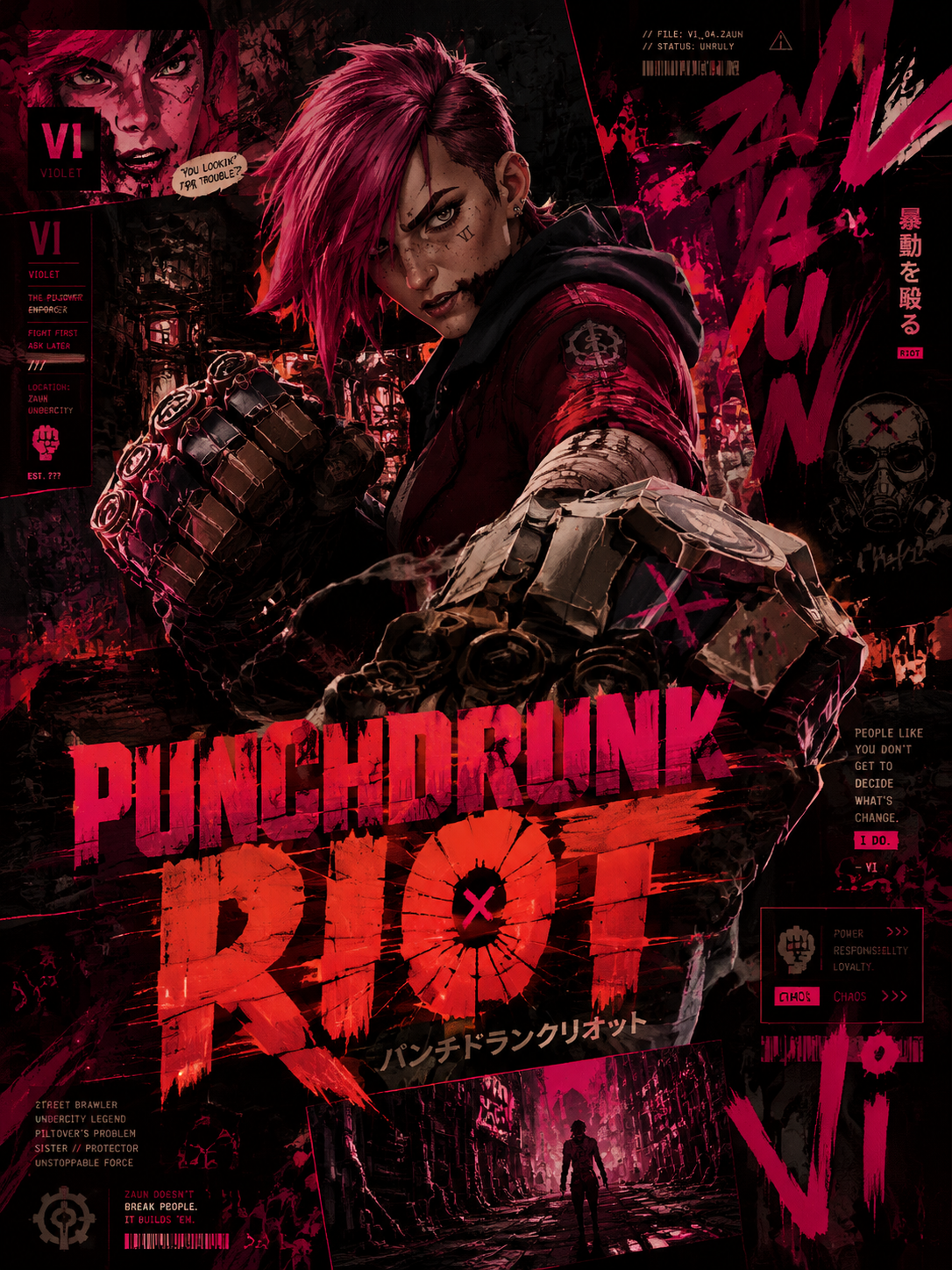
Describe the shot instead of tweaking parameters — subject, action, camera, and light parse from natural language.
Attach up to seven stills — the model holds identity, wardrobe, and art direction across the clip.
Sketch at 720p for fast turnaround, then finish at 1080p or 4K for delivery.
Render 16:9 widescreen or 9:16 vertical from the same brief.
Pick the beat length that fits the shot — short loops or fuller takes.
The fast tier of the Gemini Omni line — iterate on direction instead of waiting on the queue.
Gemini Omni 1.2 Flash workflow
Gemini Omni 1.2 Flash treats every clip as a take you can refine — not a render you have to accept.
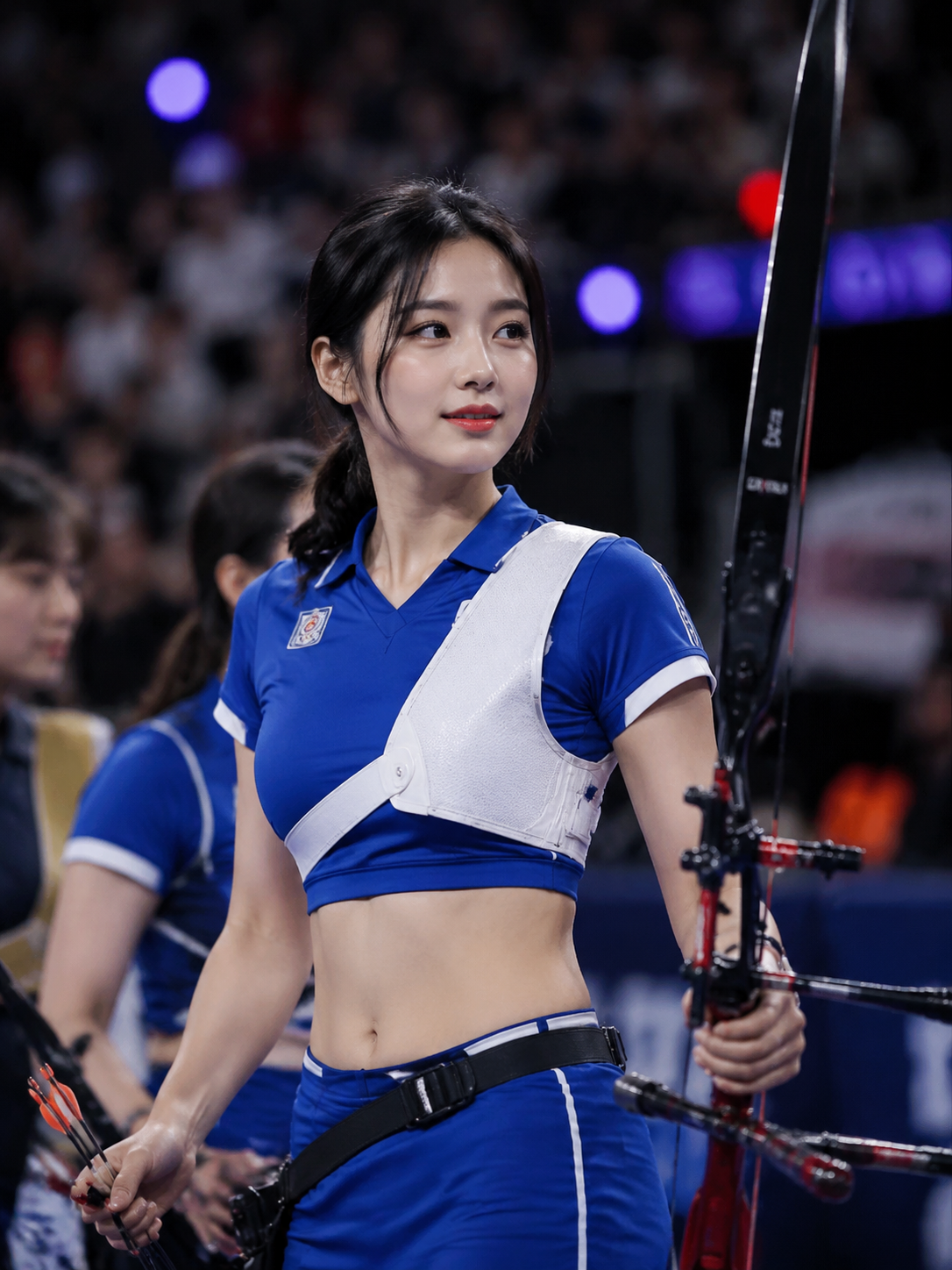
Compose
Write the subject, action, camera, and light. Add references when a face, product, or style has to stay recognizable.
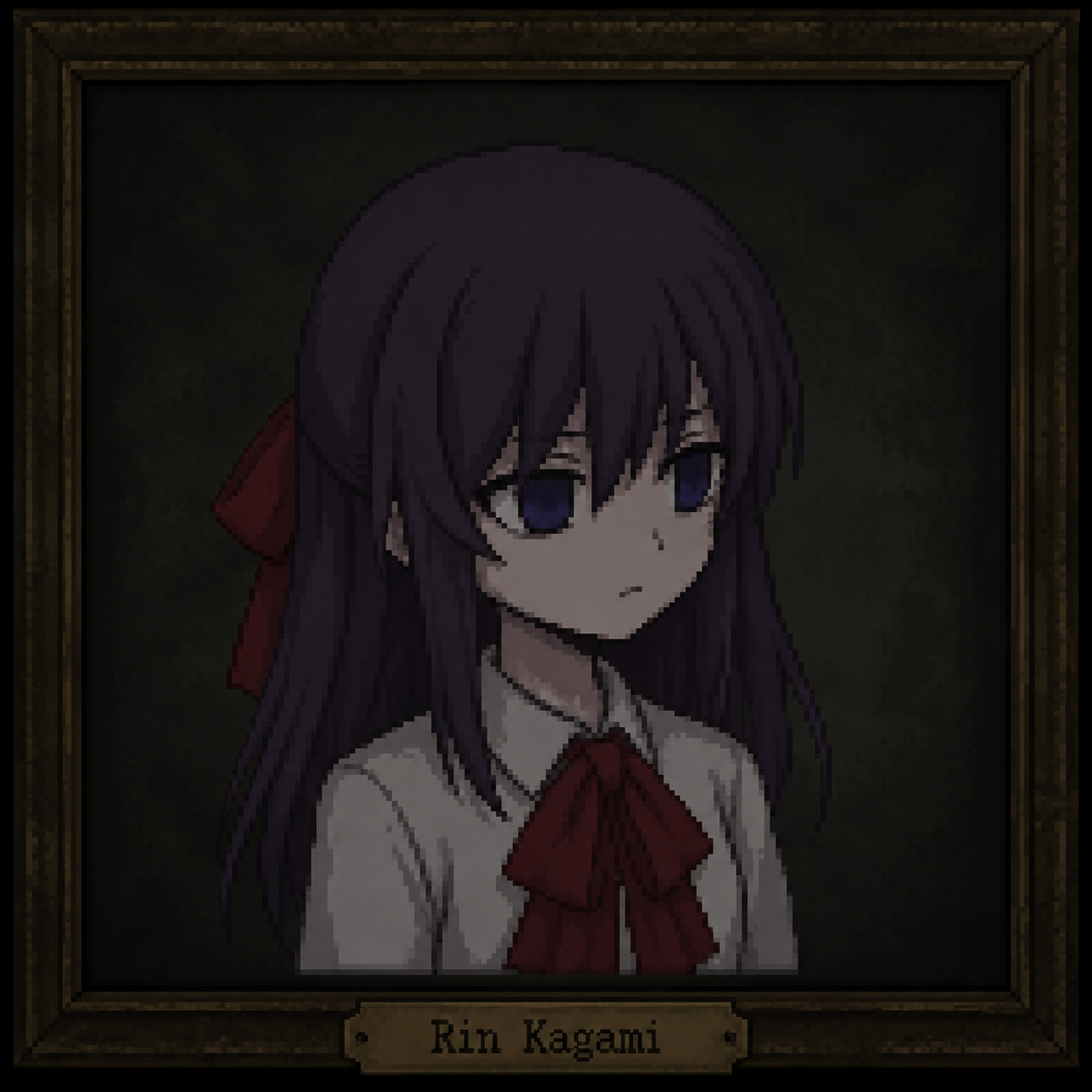
Direct
Pick aspect and resolution. Label each image in the prompt — the character, the setting, the palette — so the model knows its role.
Refine
Ask for a different camera move, a tighter framing, or a new scene — Gemini Omni 1.2 Flash revises the shot without resetting it.
Build a clear shot brief
Make the important choices explicit, review the take against your brief, and use the best version as the basis for the next one.
Describe what the clip should show and where it will run. A product reel, a storyboard beat, and a social loop need different framing and pacing.
Explain which image defines the character or product and which supplies the setting or style. Label them in the prompt.
Select 16:9 or 9:16, 720p to 4K, and a 4–10 second duration that fits the action.
Check motion, identity, and framing across the take. Refine the brief, then download the clip that fits your edit.
From a shot brief to a usable clip
Choose a task with a clear visual objective. Gemini Omni 1.2 Flash gives creators, studios, marketers, and product teams more ways to explore it.
Explore studio, lifestyle, and seasonal scenes from product references while shape, materials, and labels stay true.
Carry a recognizable cast through new angles and camera moves with the same reference set.
Create coordinated clips for 16:9 placements and 9:16 feeds from one approved direction.
Turn boards and reference stills into moving takes that hold the intended look.
Test lighting, palette, and camera language on short loops before committing to a production.
Develop regional variations from one brief and adjust on-screen text or scenery per market.
Useful answers before you create
Understand the model, prepare better references, and choose a practical approach to your next clip.
作成頻度に合わせてプランを選択:定期的なワークフローには定期クレジット、特定のプロジェクトには一回限りのパックを。
支払いやプランに関するご質問はサポートまで: サポートに問い合わせ
安全なお支払い:
Gemini Omni 1.2 Flashプランを選ぶ前に、請求、共有クレジット、解約、有効期限を確認。
Understand the model, prepare better references, and choose a practical approach to your next clip.
安全な支払い方法
Make the next shot visible
Bring a character still, a product photo, or a clear shot brief. Draft a take, refine the direction, and save the clip that fits your edit.