Free credits · No subscription · Pay per clip

Gemini Omni 1.2 Flash: Multimodal AI Video Generation

Start free — no subscription, pay per clip. Gemini Omni 1.2 Flash turns prompts and image references into coherent video — consistent characters, scenes, and styles up to 4K.

50 0/2
Bono para nuevos creadores

Inicia sesión para reclamar 20 créditos iniciales y empezar a crear

Gemini Omni 1.2 Flash

Direct the shot you have in mind

Gemini Omni 1.2 Flash turns visual direction into finished clips: write the shot, attach references, and keep every take in one place.

01

Multimodal input

Text plus up to seven image references — characters, scenes, styles, and storyboard guidance in one run.

02

Direction

Camera language lands where you put it — push-ins, orbits, and follows read from plain prompts.

03

Consistency

Faces, products, and palettes stay consistent across shots and whole sequences.

Introduce Gemini Omni 1.2 Flash

A faster brief-to-clip pipeline

Gemini Omni 1.2 Flash is a multimodal video model built for iterative creative work. Give it a clear brief or a set of reference stills — it returns clips you can actually ship.
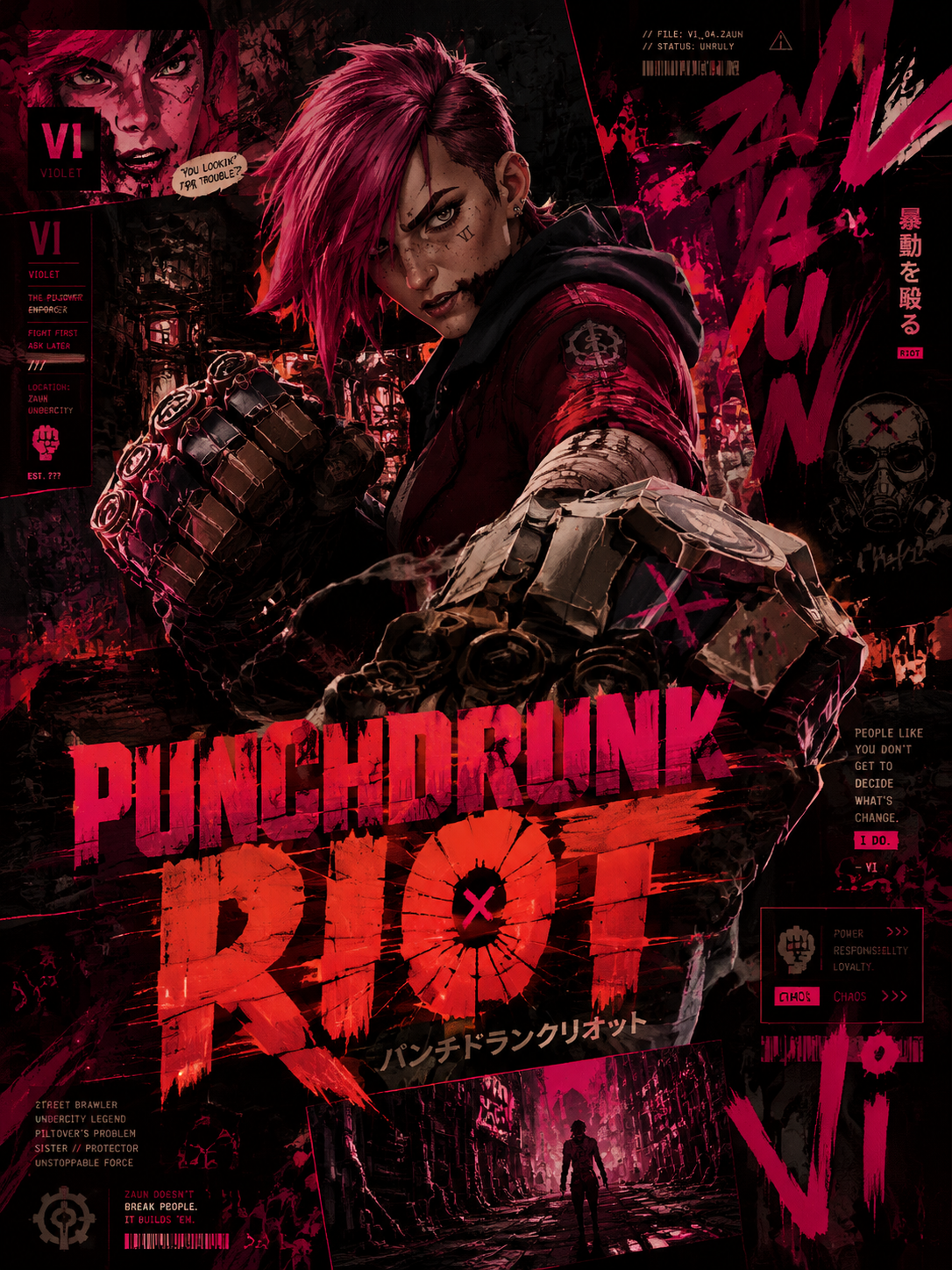
Gemini Omni 1.2 Flash video generation studio preview
01

Brief-ready prompts

Describe the shot instead of tweaking parameters — subject, action, camera, and light parse from natural language.

02

Reference-guided shots

Attach up to seven stills — the model holds identity, wardrobe, and art direction across the clip.

03

Draft to 4K

Sketch at 720p for fast turnaround, then finish at 1080p or 4K for delivery.

04

Two orientations

Render 16:9 widescreen or 9:16 vertical from the same brief.

05

4–10 second clips

Pick the beat length that fits the shot — short loops or fuller takes.

06

Flash-tier speed

The fast tier of the Gemini Omni line — iterate on direction instead of waiting on the queue.

Gemini Omni 1.2 Flash workflow

Keep what matters. Change what moves the story.

Gemini Omni 1.2 Flash treats every clip as a take you can refine — not a render you have to accept.

Composing a video brief in Gemini Omni 1.2 Flash

Compose

Describe the shot you want

Write the subject, action, camera, and light. Add references when a face, product, or style has to stay recognizable.
Directing a video take in Gemini Omni 1.2 Flash

Direct

Name what each reference does

Pick aspect and resolution. Label each image in the prompt — the character, the setting, the palette — so the model knows its role.
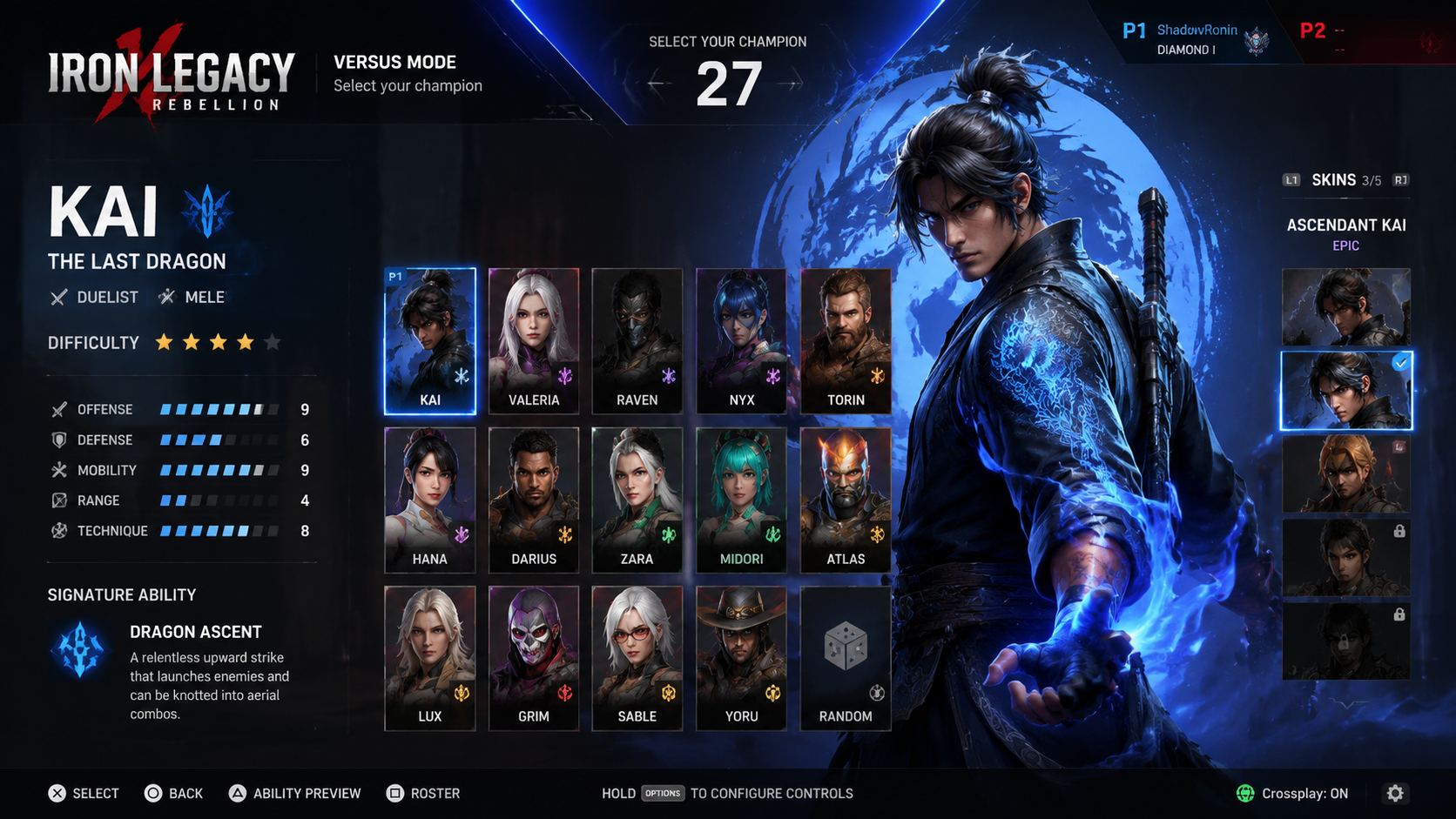
Refining a generated clip in Gemini Omni 1.2 Flash

Refine

Adjust the take

Ask for a different camera move, a tighter framing, or a new scene — Gemini Omni 1.2 Flash revises the shot without resetting it.

Build a clear shot brief

A practical way to start with Gemini Omni 1.2 Flash

Make the important choices explicit, review the take against your brief, and use the best version as the basis for the next one.

01

State the shot

Describe what the clip should show and where it will run. A product reel, a storyboard beat, and a social loop need different framing and pacing.

02

Assign each reference a role

Explain which image defines the character or product and which supplies the setting or style. Label them in the prompt.

03

Choose format and length

Select 16:9 or 9:16, 720p to 4K, and a 4–10 second duration that fits the action.

04

Review, refine, and save

Check motion, identity, and framing across the take. Refine the brief, then download the clip that fits your edit.

From a shot brief to a usable clip

Where Gemini Omni 1.2 Flash can help

Choose a task with a clear visual objective. Gemini Omni 1.2 Flash gives creators, studios, marketers, and product teams more ways to explore it.

01

Product clips in new settings

Explore studio, lifestyle, and seasonal scenes from product references while shape, materials, and labels stay true.

02

Character-consistent shots

Carry a recognizable cast through new angles and camera moves with the same reference set.

03

Campaign and social video

Create coordinated clips for 16:9 placements and 9:16 feeds from one approved direction.

04

Storyboards and previs

Turn boards and reference stills into moving takes that hold the intended look.

05

Concept and mood films

Test lighting, palette, and camera language on short loops before committing to a production.

06

Localized creative variants

Develop regional variations from one brief and adjust on-screen text or scenery per market.

Useful answers before you create

Gemini Omni 1.2 Flash FAQ

Understand the model, prepare better references, and choose a practical approach to your next clip.

01What is Gemini Omni 1.2 Flash?
Gemini Omni 1.2 Flash is a multimodal AI video model. It generates 4–10 second clips from text prompts alone or from prompts plus up to seven reference images, at 720p, 1080p, or 4K.
02How do image references work?
Upload up to seven stills and name each one’s role in the prompt — character, setting, palette. The model treats them as direction rather than a locked first frame.
03How fast is Gemini Omni 1.2 Flash?
It is the speed-focused tier of the Gemini Omni line — most drafts return quickly at 720p. Timing varies with the request and service load.
04How do I write a good video prompt?
Lead with the subject and action, then add camera language — push-in, orbit, handheld follow — and the lighting mood. One camera move per clip stays predictable.
05Which resolutions and ratios are supported?
720p, 1080p, and 4K in 16:9 landscape or 9:16 portrait. The credit estimate updates before each run.
06Can I edit a video I already have?
Use reference stills from your footage to re-shoot a scene with new direction. For literal video-extension workflows, keep an eye on the model page — capabilities grow.
07What about images?
The same studio hosts the GPT Image lineup and Seedream 5 Pro — generate key visuals or first frames, then animate them here.
08Does it generate audio?
Gemini Omni 1.2 Flash focuses on picture. The Seedance video models in the same studio render synchronized audio when a shot needs it.
09What should I check before publishing?
Review faces, hands, product details, and any text in the clip. The model accelerates the creative workflow, but a final review remains part of shipping.
10How do I begin?
Open Create, write a shot brief, and attach references if needed. You can prepare your prompt before signing in — sign in to generate and save your work.

Precios de Gemini Omni 1.2 Flash

Elige el plan según tu frecuencia de creación: créditos recurrentes para un flujo regular o un pack único para un proyecto definido.

Cancela cuando quieras

Para cualquier duda sobre pagos o planes, contacta con soporte: Contactar con soporte

Paga de forma segura con

VisaMastercardAmerican ExpressApple PayUnionPayGoogle PayStripeMore >>

Revisa facturación, créditos compartidos, cancelación y validez antes de elegir un plan de Gemini Omni 1.2 Flash.

Entiende el plan antes de pagar

Understand the model, prepare better references, and choose a practical approach to your next clip.

01¿Qué diferencia hay entre suscripción y pack de créditos?
Las suscripciones están pensadas para creación continua e incluyen una asignación recurrente de créditos. Los packs son compras únicas sin cargo recurrente — flexibles para proyectos ocasionales.
02¿Cómo funciona la facturación anual?
Los planes anuales muestran su precio mensual equivalente para comparar, pero el importe anual completo se cobra una vez al año. Tu asignación anual está disponible durante el periodo del plan.
03¿Cómo funcionan los créditos entre modelos?
Los créditos se comparten entre los modelos activados en el studio. El costo varía según modelo y ajustes (resolución, referencias); revisa el cargo exacto antes de enviar.
04¿Puedo cancelar en cualquier momento?
Sí, desde los ajustes de facturación. Cancelar detiene renovaciones futuras; tu plan actual sigue disponible hasta el final del periodo pagado.
05¿Cuánto duran los créditos de un pack?
365 días desde la fecha de compra.
06¿Puedo usar el contenido generado comercialmente?
Sí. Los planes y packs de pago admiten proyectos personales y comerciales, sujeto a los términos aplicables y a tus derechos sobre el material subido.
07¿Cuántas generaciones pueden correr a la vez?
Las cuentas gratuitas ejecutan 1 lote a la vez. Los packs válidos y Starter permiten 2, Pro 4 y Premium 8. Cuentan los lotes en espera y en curso, tanto en imagen como en video.

Paga de forma segura con

UnionPayStripeMore >>

Make the next shot visible

Start your next clip on Gemini Omni 1.2 Flash

Bring a character still, a product photo, or a clear shot brief. Draft a take, refine the direction, and save the clip that fits your edit.